Creating a Virtual Machine
Before studying this chapter, you need to download and install VirtualBox.
While studying this material, you will create your first virtual machine. I will demonstrate using VirtualBox on Windows. VirtualBox looks roughly the same on all operating systems; even if you are a macOS user, you will not have difficulties during the creation process.
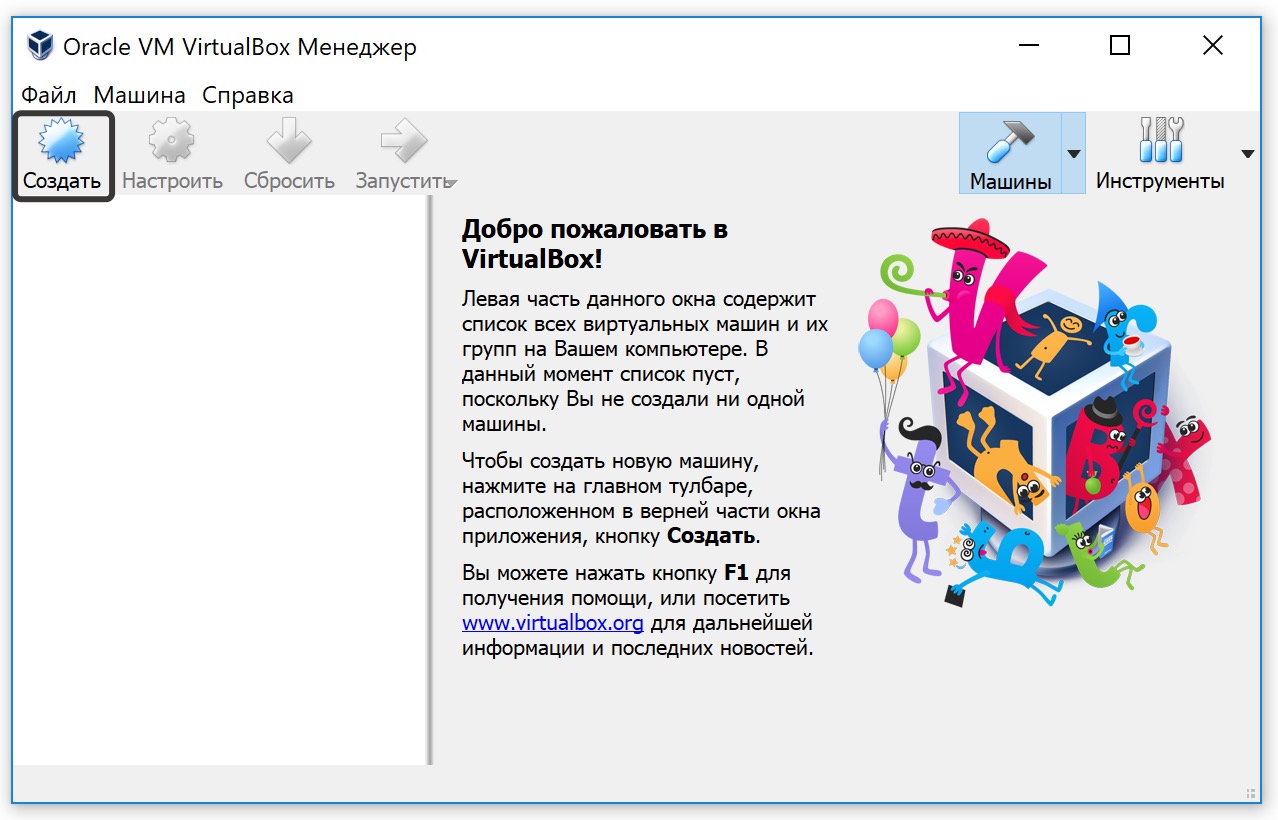
Run the program and click Create.
A virtual machine is created for a specific operating system. I suggest using the Linux Mint operating system. Download the image from the official website.
You need to download Cinnamon 32/64-bit.
If you want to install Windows 10, download it from the official website.
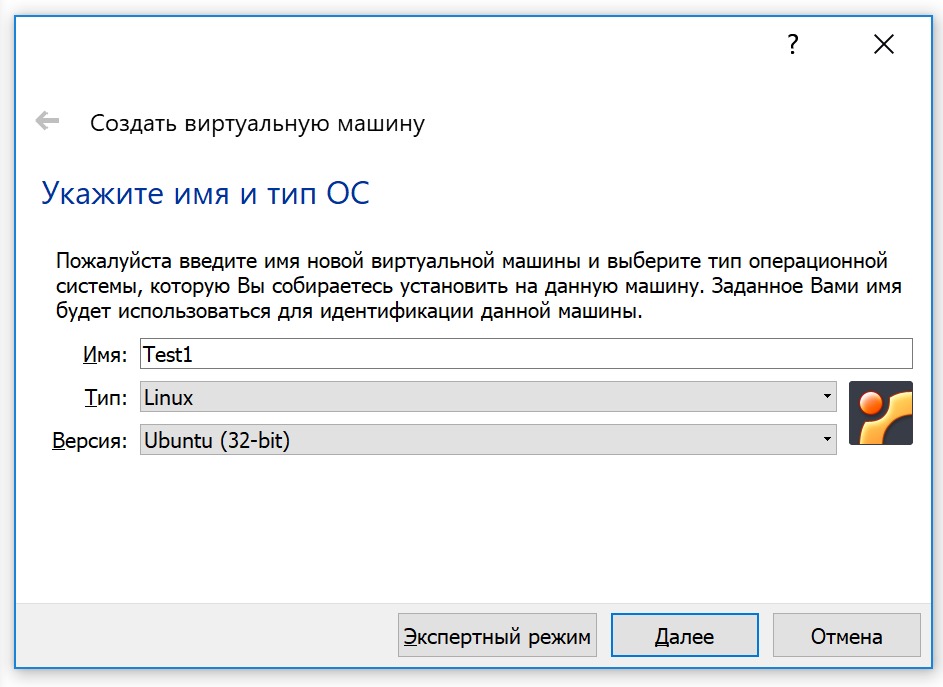
After downloading the operating system image, you can proceed to create the virtual machine. First, you need to specify the name, type, and version.
Name (Name) - choose any name for the virtual machine you are creating.
Type (Type) - Linux, since we will be installing Linux Mint.
Version (version) - Ubuntu (32/64-bit), as Linux Mint is based on this system.
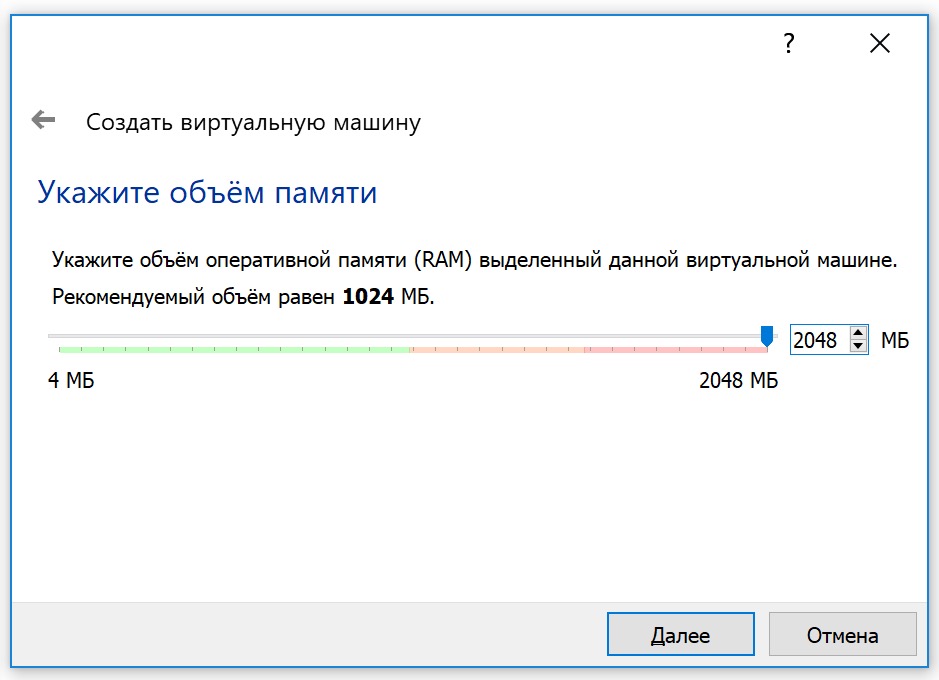
Remember, a virtual machine is a virtual computer inside your main computer. The virtual machine needs to be allocated a portion of the resources of your main device, namely: RAM and hard disk space.
For Linux Mint, we recommend allocating 2048 MB of RAM, which will only be used when the virtual machine is running. For a virtual machine with the Windows 10 operating system, we recommend allocating 4096 MB.