Creating and Using Secure Cryptographic Containers with TrueCrypt and VeraCrypt
Earlier, we discussed how to install TrueCrypt and VeraCrypt, conducted a comparison of the programs, and described the advantages and disadvantages of each. In this chapter, we will provide a step-by-step guide on creating and using cryptcontainers using TrueCrypt and VeraCrypt software.
The main functionality and appearance of these programs are identical, and to avoid repeating the same information, we will demonstrate using VeraCrypt running on Windows 10. This guide will be suitable for users of either program running on any operating system.
Creating a TrueCrypt / VeraCrypt Cryptcontainer
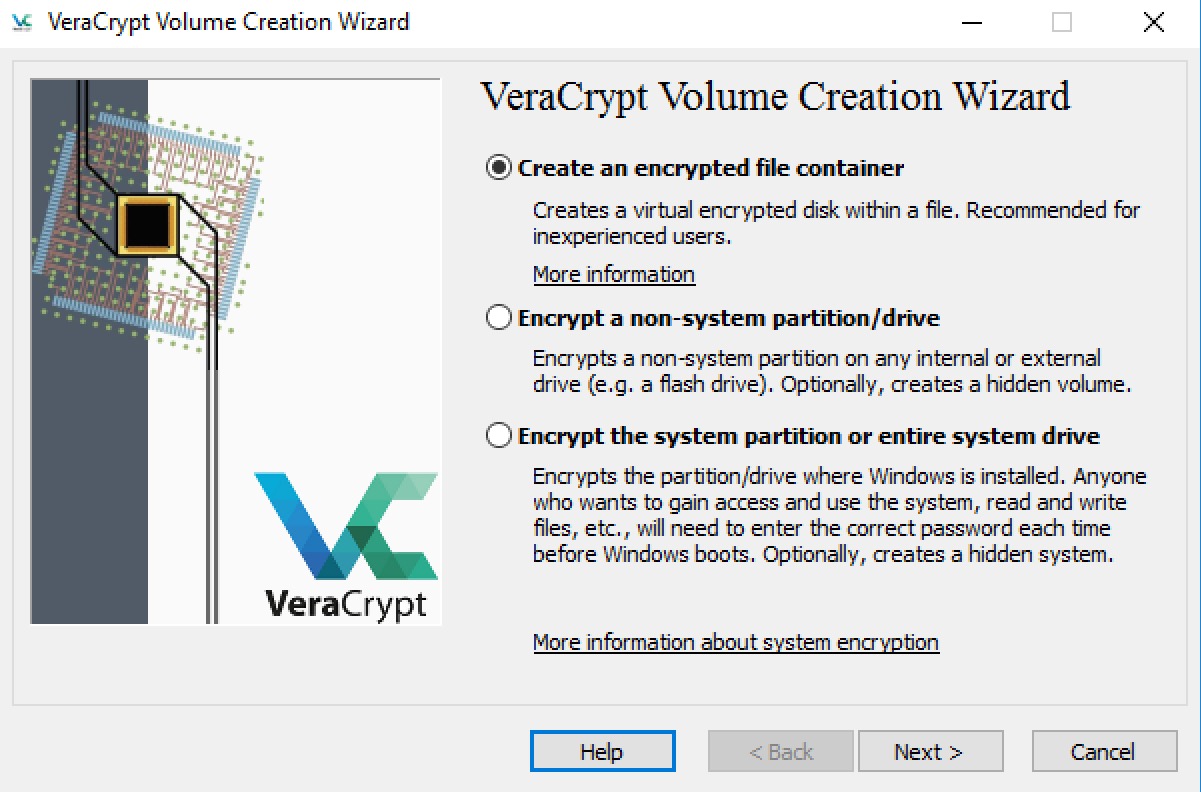
Let's start by creating a cryptcontainer. Launch VeraCrypt / TrueCrypt and in the main window, click on the Create Volume button.
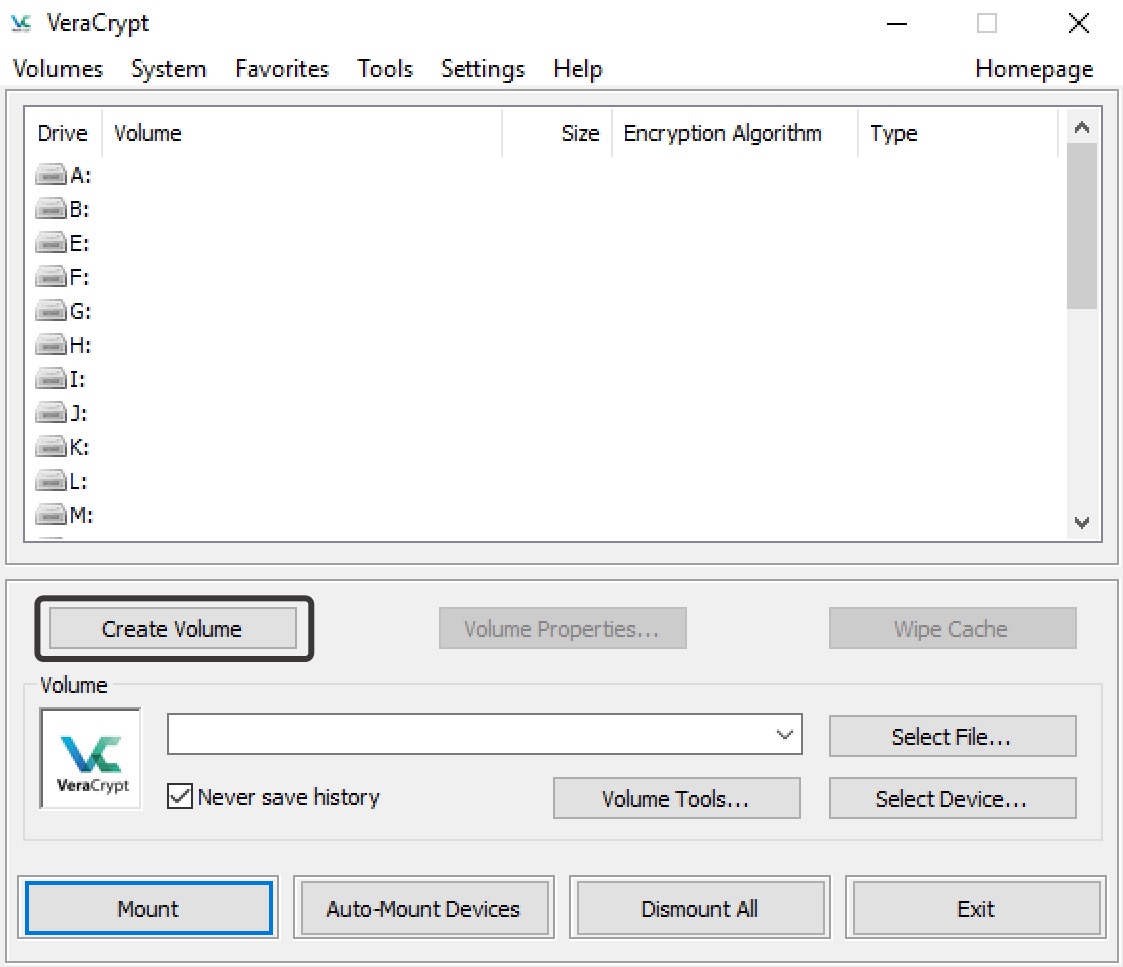
The program will ask what you want to encrypt and will offer three options.
- Create an encrypted file container – create a regular cryptcontainer. This is exactly what we need.
- Encrypt a non-system partition/drive – encrypt an existing non-system partition on a hard drive, USB flash drive, or SD card.
- Encrypt the system partition or entire system drive – encrypt a disk with an already installed OS or create an additional system disk. When selecting this option, you will need to enter a password each time you boot the operating system, and we will discuss this in one of the following sections.