AES Crypt for iOS. Data Encryption on iPhone and iPad.
I pondered for a long time whether to include the use of AES Crypt on iOS in the course, as its capabilities are limited to encrypting photos. I'm not sure how many people need this feature; however, if you want to securely encrypt your photos on iPhone or iPad, this program is just for you.
AES Crypt on iOS is a conditionally free program because it can only decrypt for free. To encrypt a photo, you will need to pay for the full version (AES Crypt Pro).
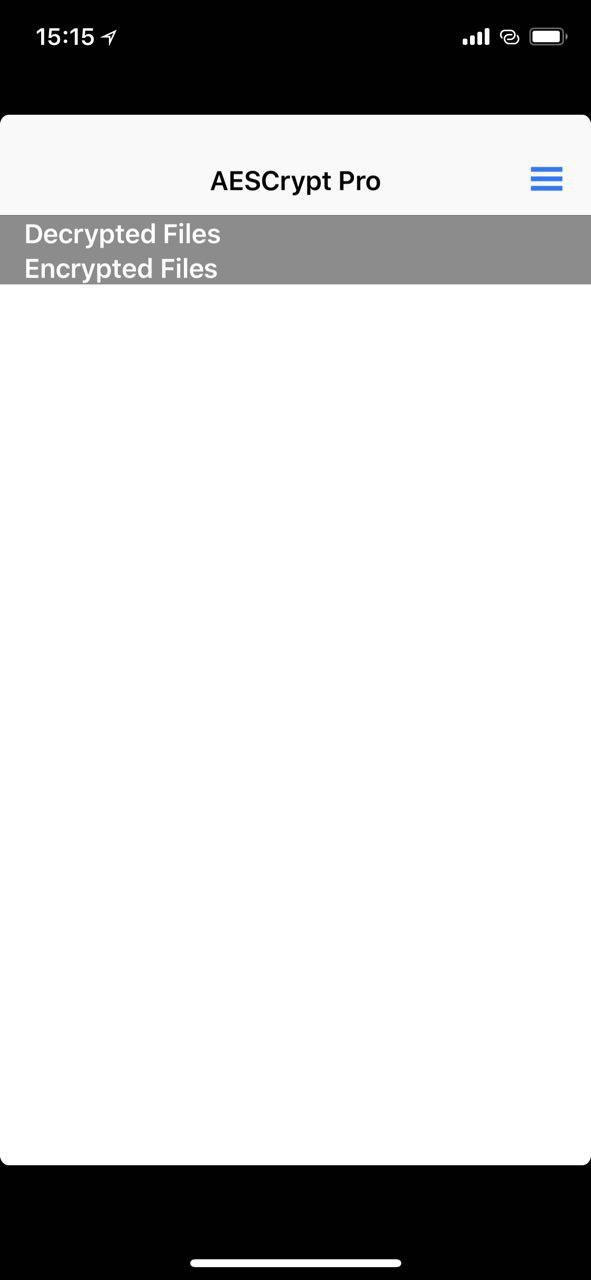
Upon first entering the program, you will see a blank screen. It should display encrypted and decrypted photos, but you don't have any yet. In the top right corner, there is a menu, the first two items allow you to take a photo and encrypt it, while the Encrypt Existing Photo option is for encrypting an already existing photo.
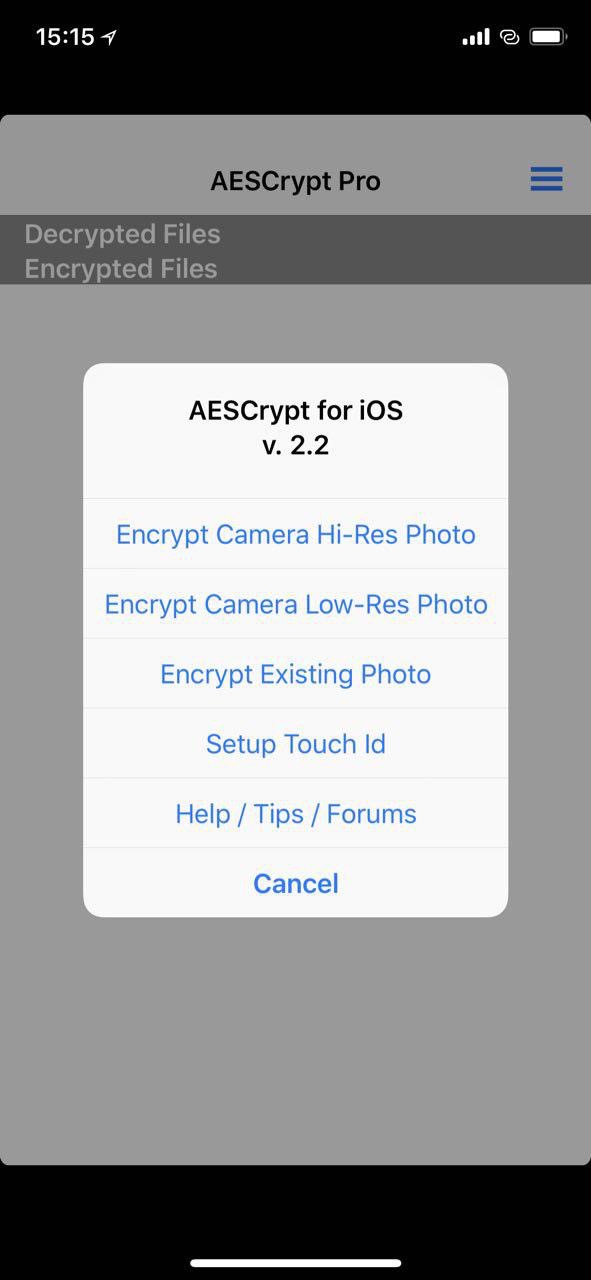
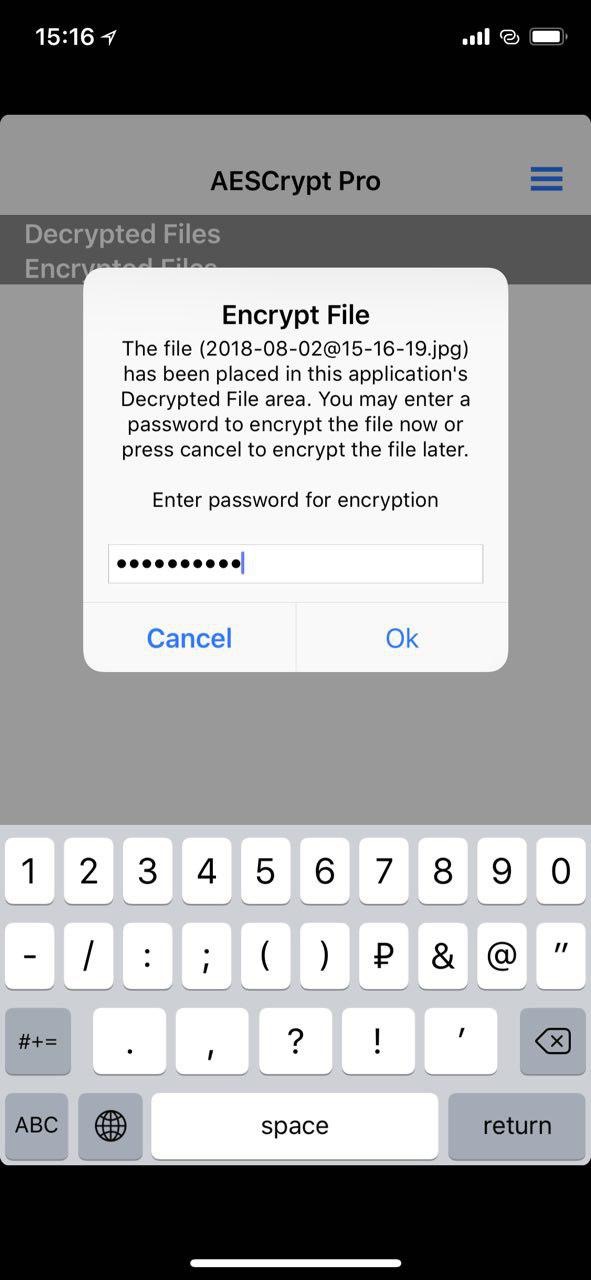
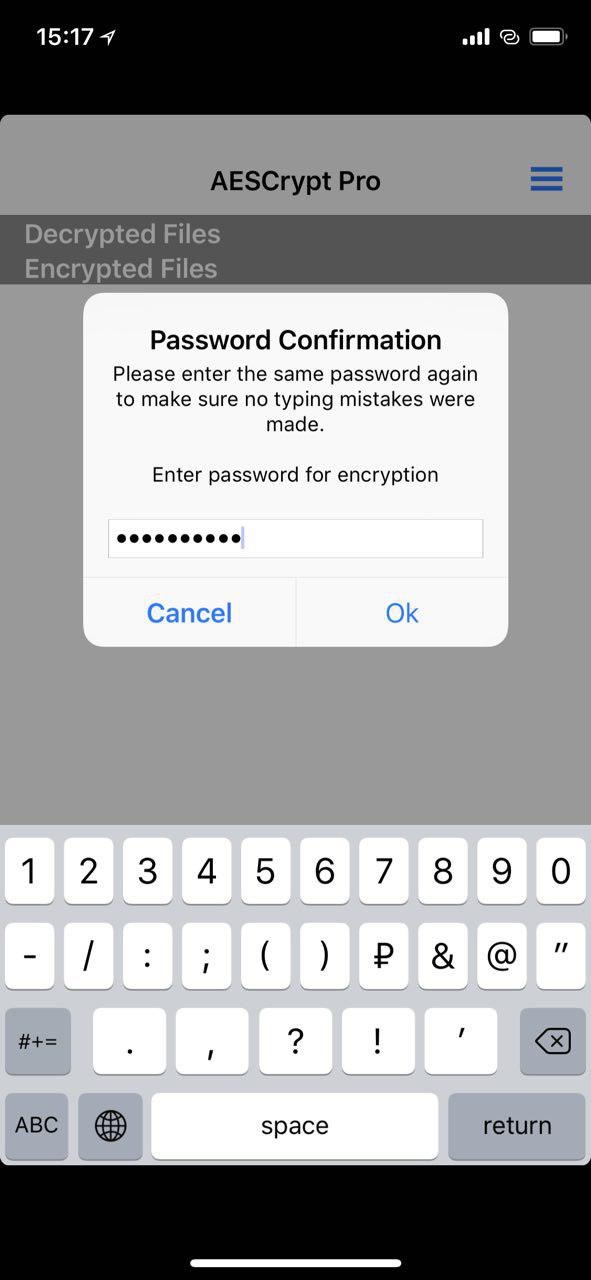
From the perspective of using the program, there are no fundamental differences whether you take a new photo or encrypt an existing one. The system will ask you for a password and its confirmation; this password will be necessary when you want to decrypt the data.
After entering the password, you will see the photo in both encrypted and unencrypted forms in the main menu of the program. Like its desktop counterpart, AES Crypt for iOS does not delete the original file but simply creates its encrypted version. You need to delete the unencrypted file from the program and from your phone. Note that photos taken from the AES Crypt program do not go into the phone's photo folder, and they should only be deleted from the program itself.