How to Determine the MAC Address on Windows, macOS, Linux, Android, iOS Devices
In this chapter, we will provide instructions on how to determine your MAC address for users of Windows, macOS, Linux, Android, and iOS. This chapter will contain minimal text and maximum instructions.
Windows
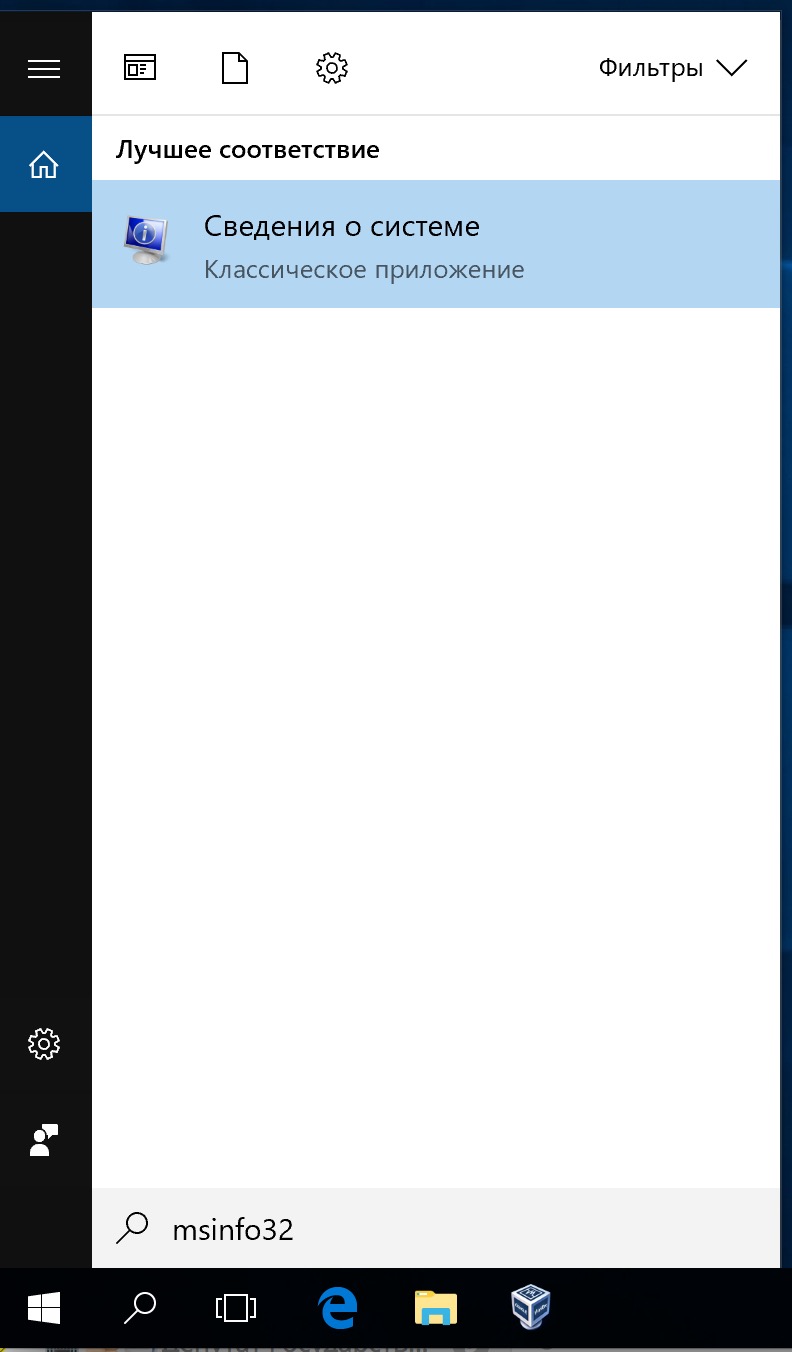
Type msinfo32 in the search and go to "System Information". We will refer to this for various information about your Windows operating system.
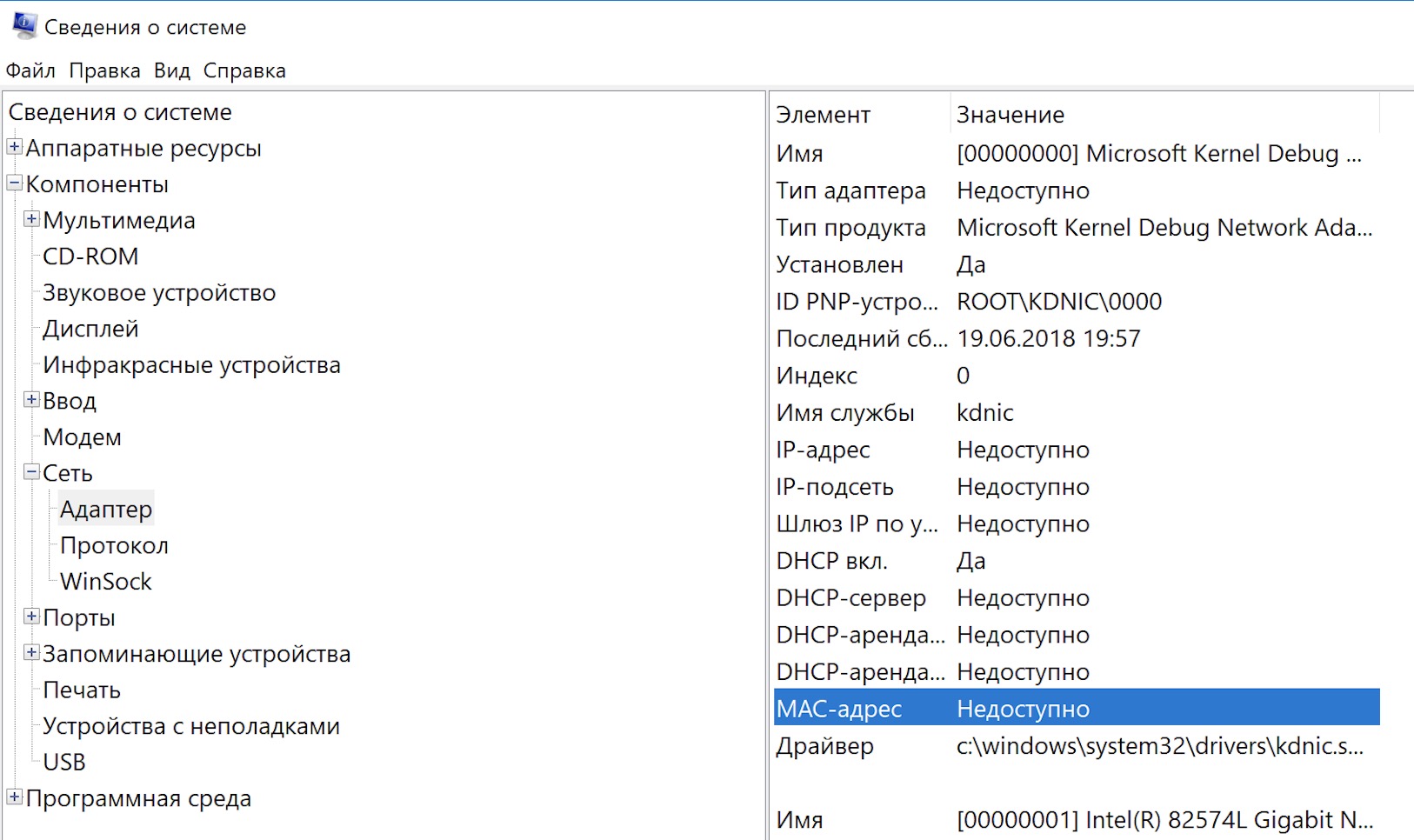
Then select "Components" > "Network" > "Adapter", where the MAC address will be listed. In my screenshot, the MAC address is not available because Windows is running as a virtual system.
macOS
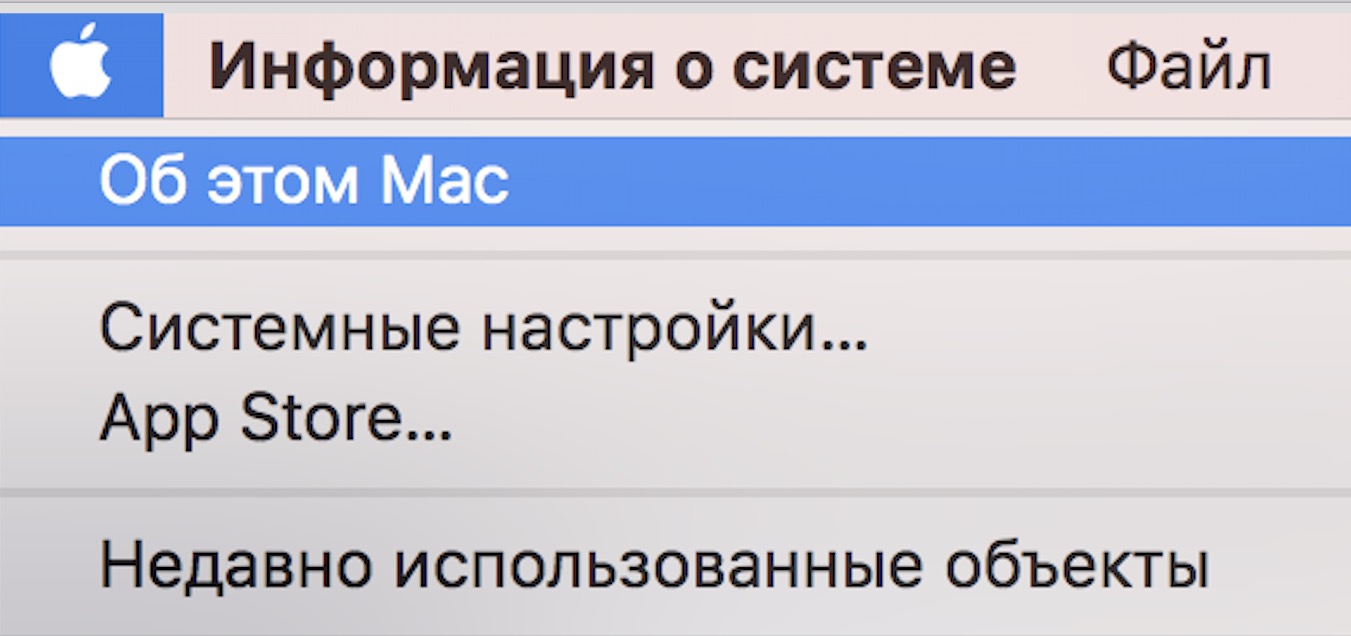
Go to the information menu "About This Mac".
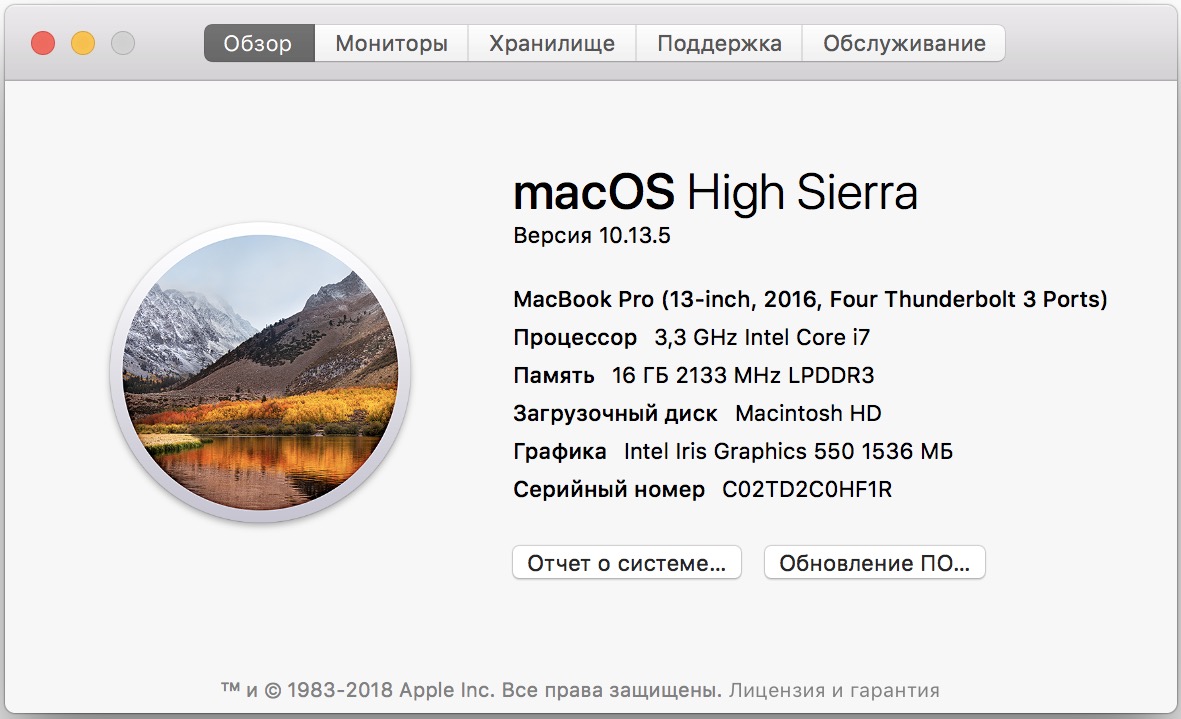
Next, select "System Report".
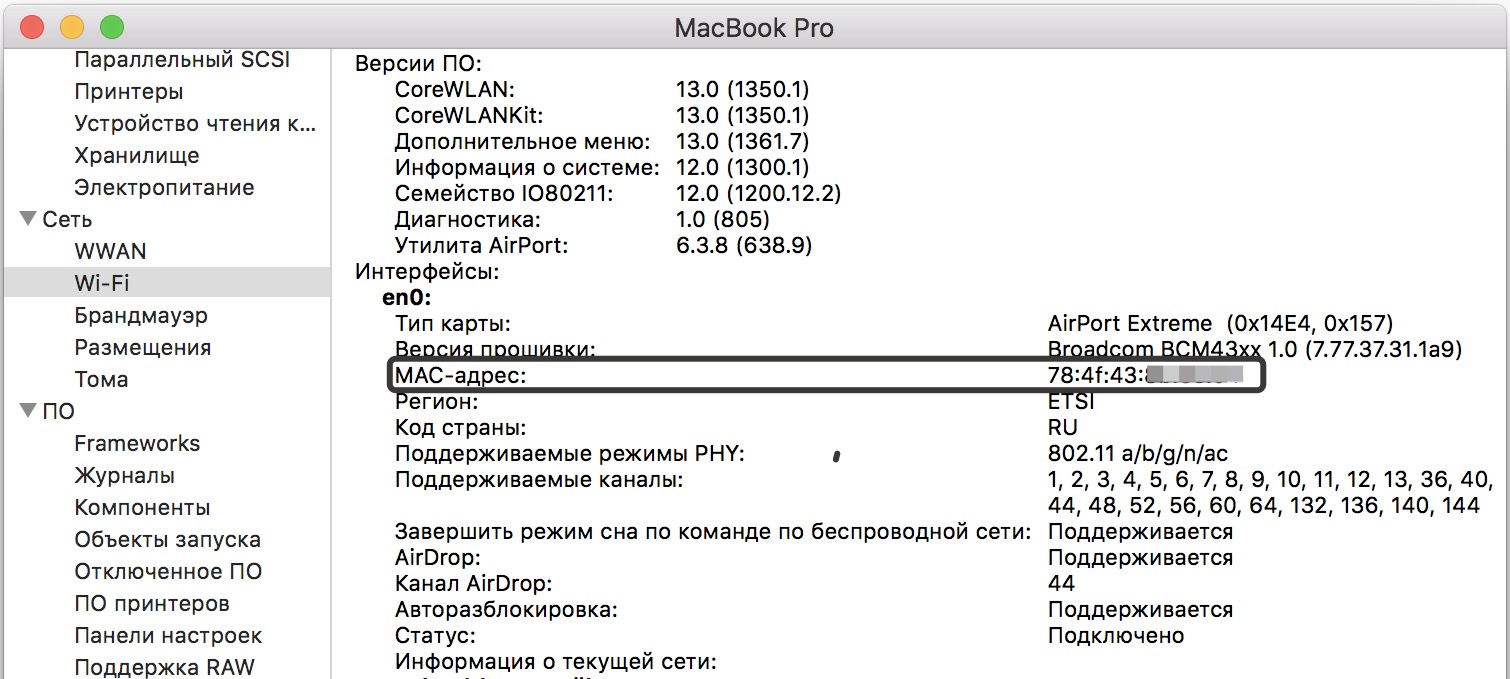
Then go to "Network" > Wi-Fi > MAC Address.
Linux
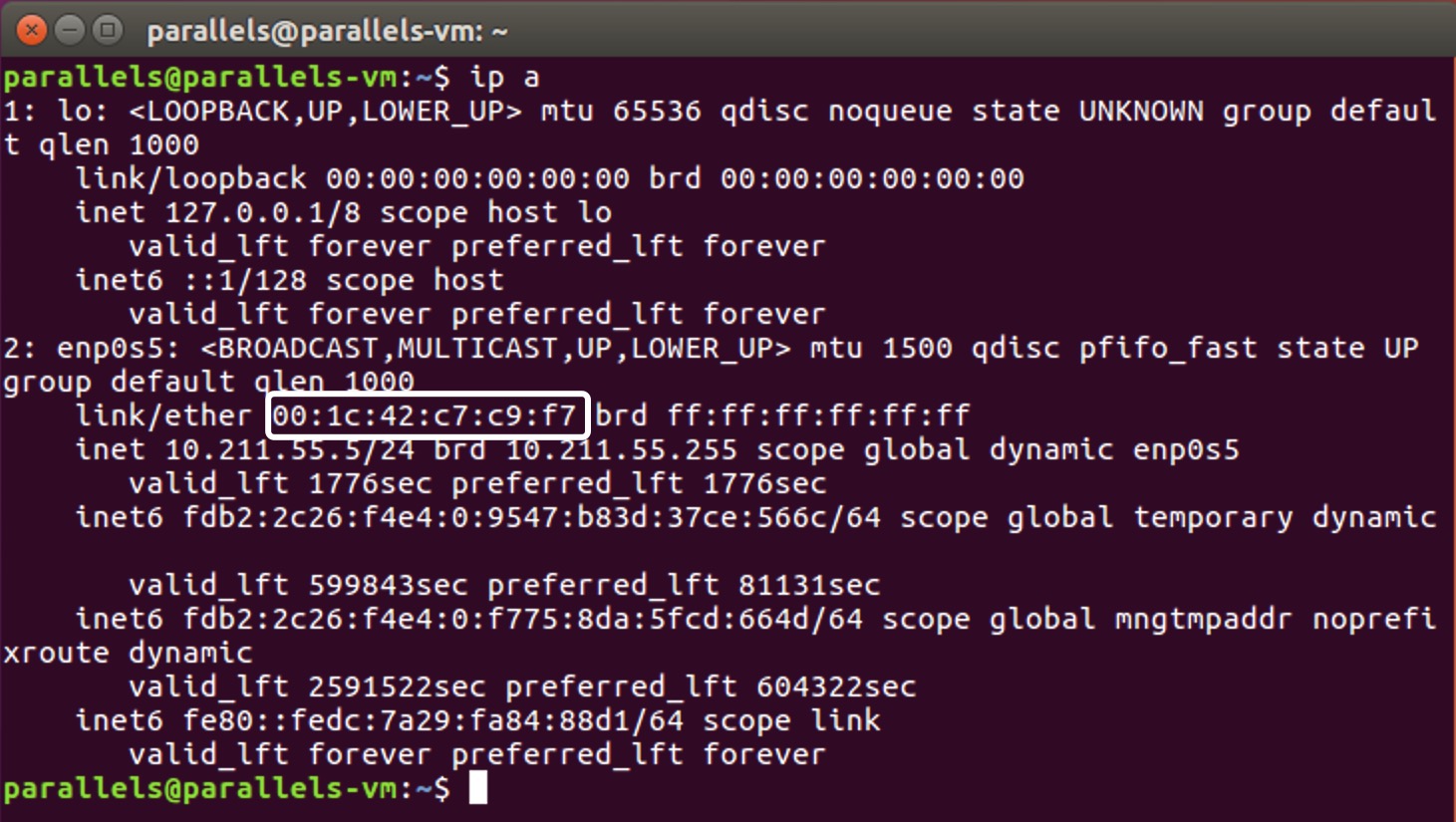
In the terminal, enter the command ip a, the MAC address will be listed in the line ether.
iOS
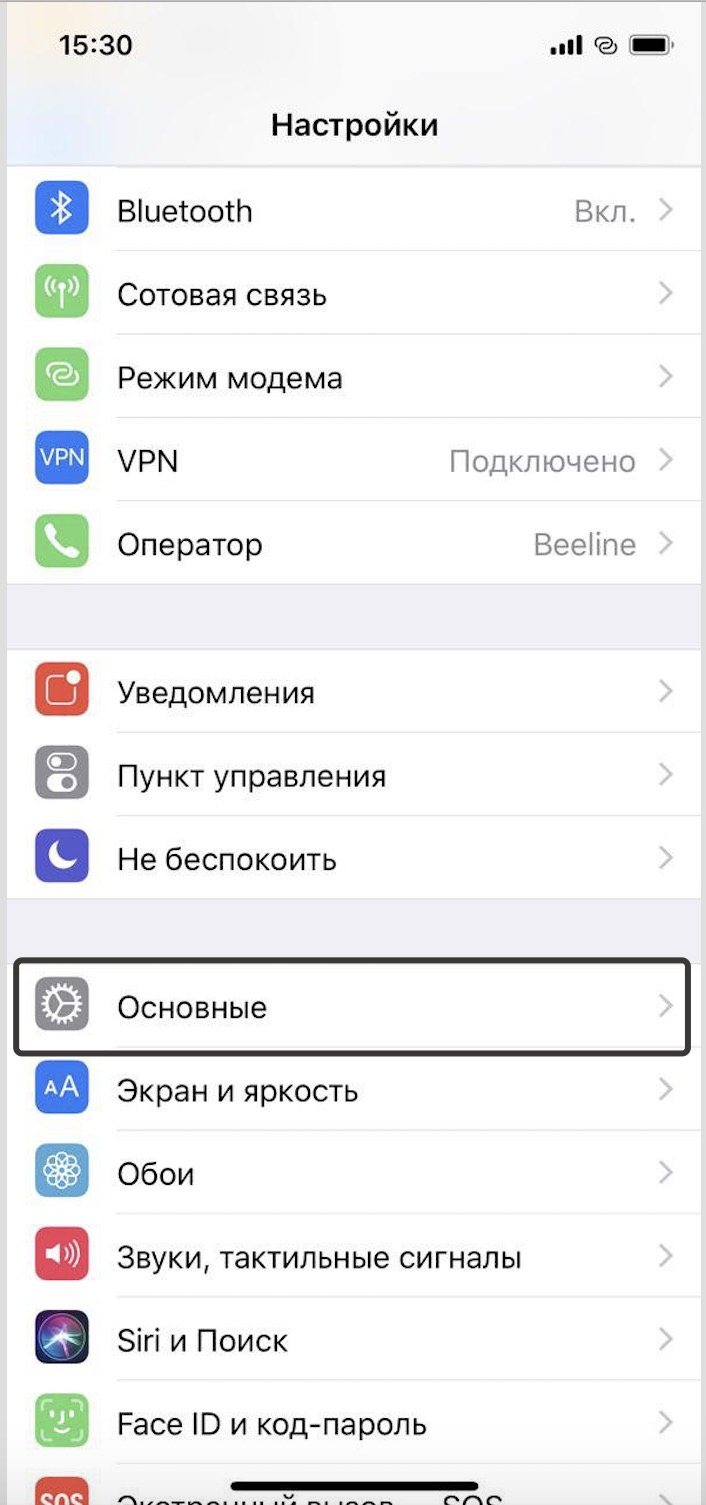
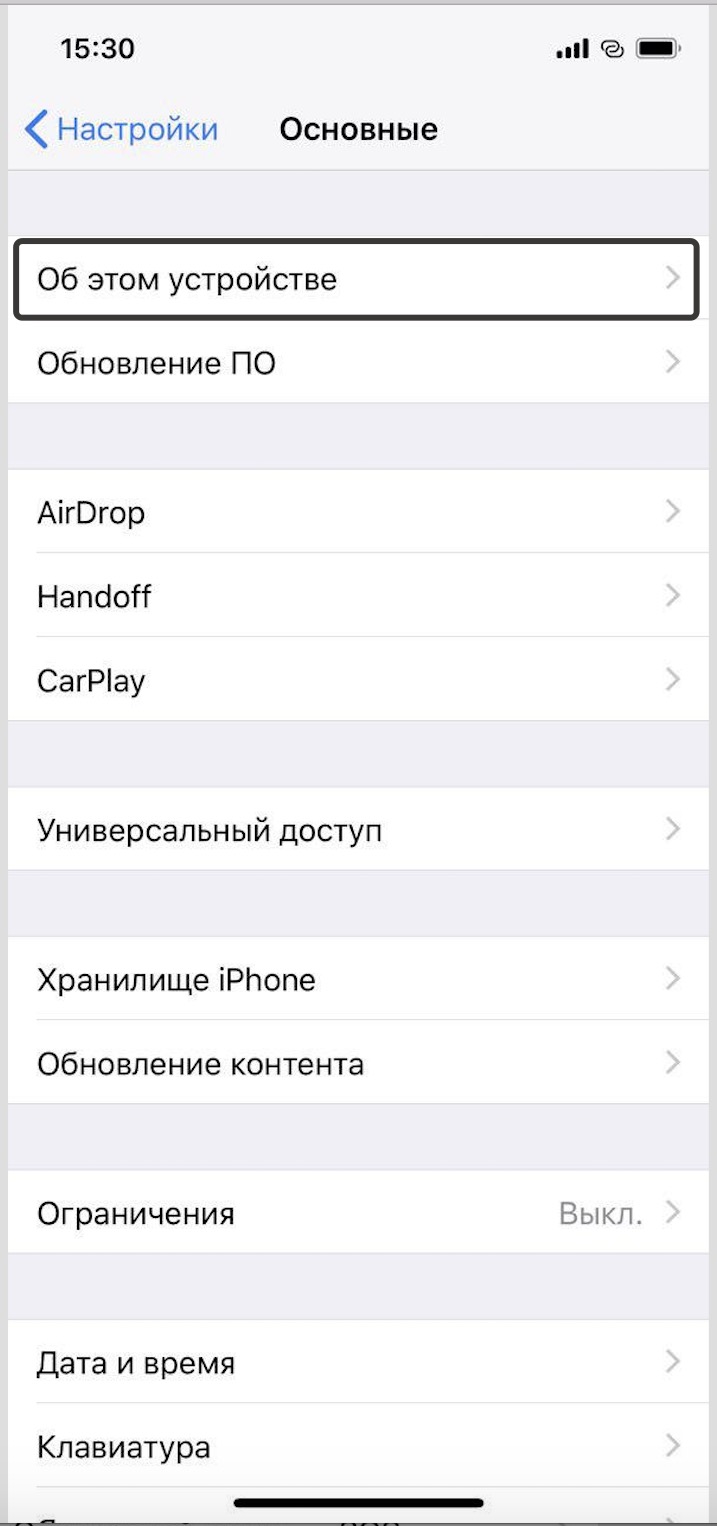
Settings > General > About > Wi-Fi Address.