Installing and Configuring Basic Security for TrueCrypt
In this course, we do not intend to teach the basics of working with a computer, so we will not explain how to install TrueCrypt on Windows. However, there may be difficulties when installing TrueCrypt on macOS and Linux, and we will dedicate a few paragraphs to this issue.
Installing TrueCrypt on Linux using Linux Mint as an example
Download the program version 7.1a.
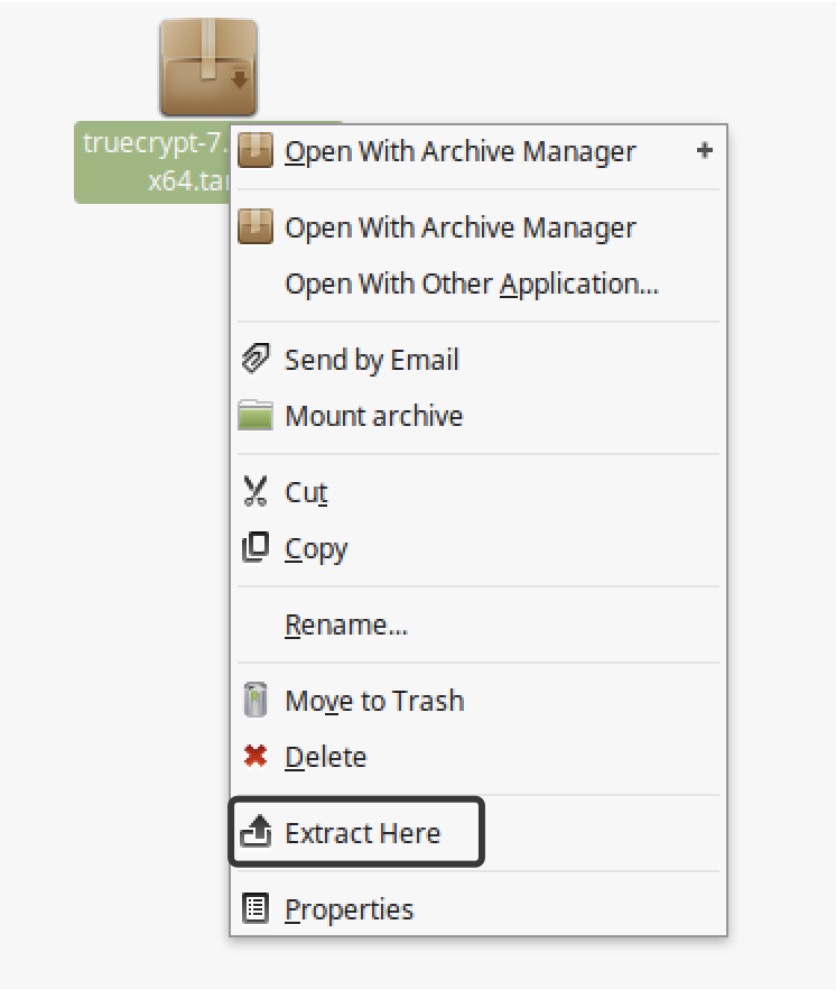
After downloading the archive, unpack it.
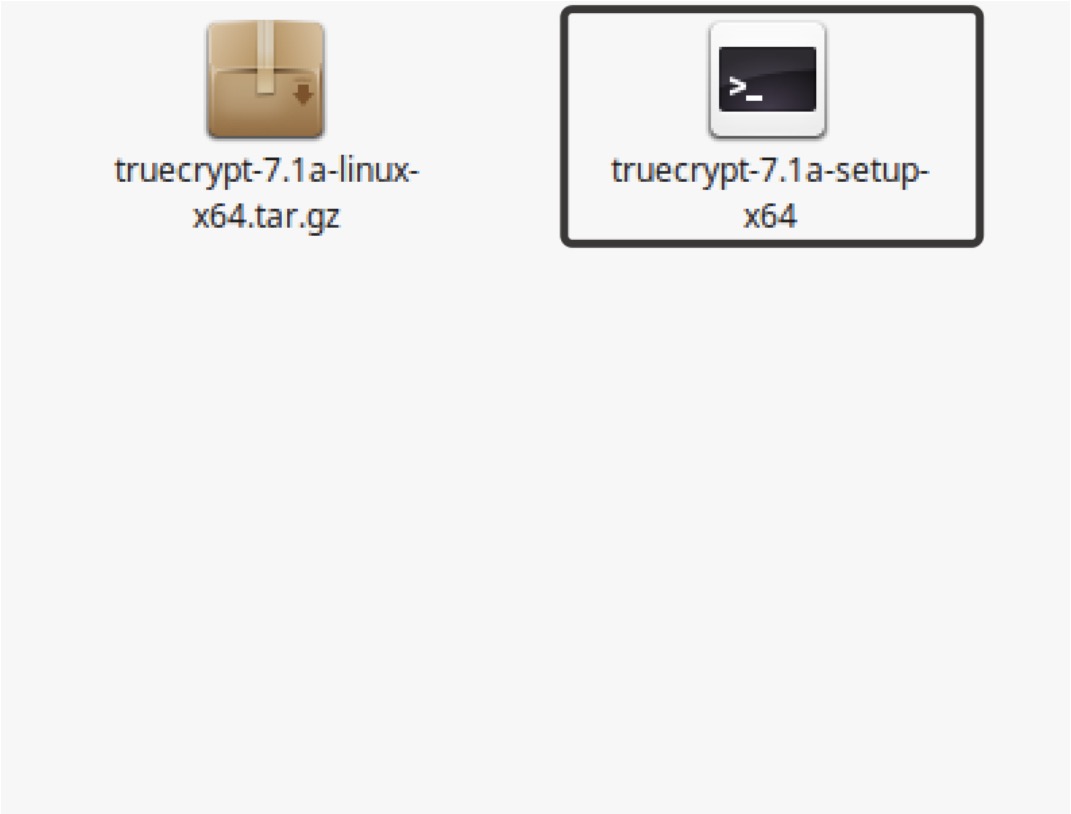
In the folder, a file named truecrypt-7.1a-setup-x64 will appear. Run it.
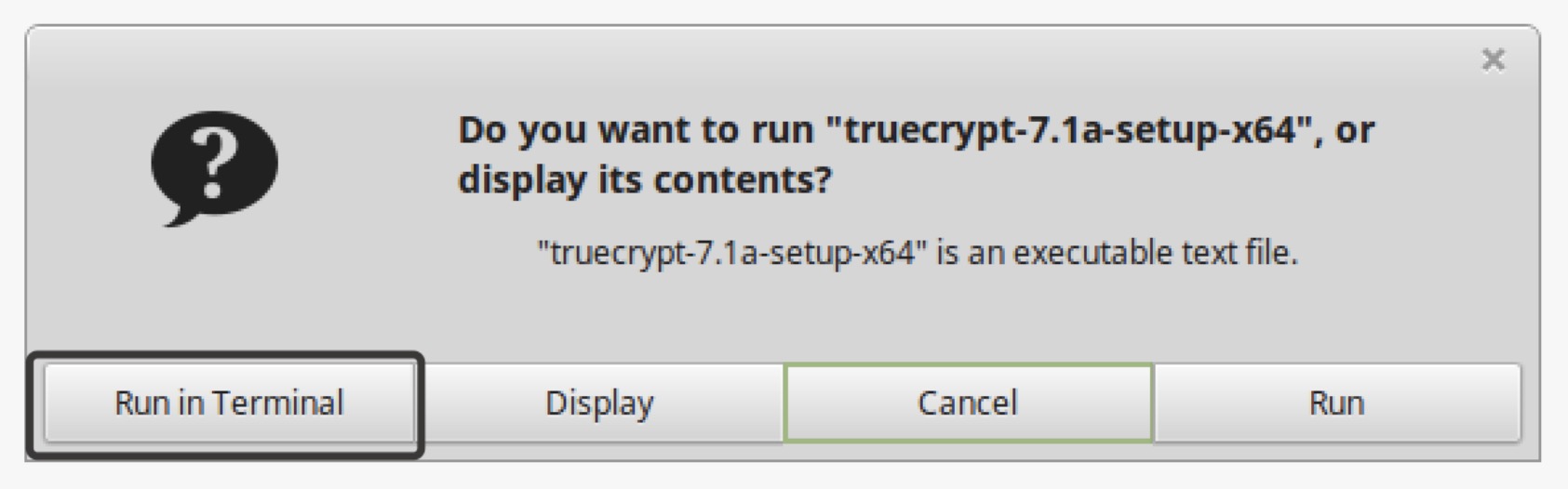
Select the option Run in Terminal.
In the terminal that opens, select Install truecrypt_7.1a_amd64.tar.gz by entering the number 1. Press the down arrow on the keyboard to read the license agreement and accept it by typing "yes". The installation of the packages will begin; wait for it to complete. If TrueCrypt does not appear in your list of programs after installation, a system reboot may help.
Please note: TrueCrypt will not install in the live version of Linux Mint.
Installing TrueCrypt on macOS
If you download TrueCrypt and try to install the program, you will likely encounter an error like: "TrueCrypt requires Mac OS X 10.4 or later." The program cannot recognize your version of macOS; this is a common problem for all users.
To make the program work, we will need to make a few modifications to TrueCrypt. Copy the installation file to the desktop or to some folder (this is important, otherwise you will not be able to make the necessary changes). Right-click on the TrueCrypt 7.1a.mpkg file and select "Show Package Contents."